
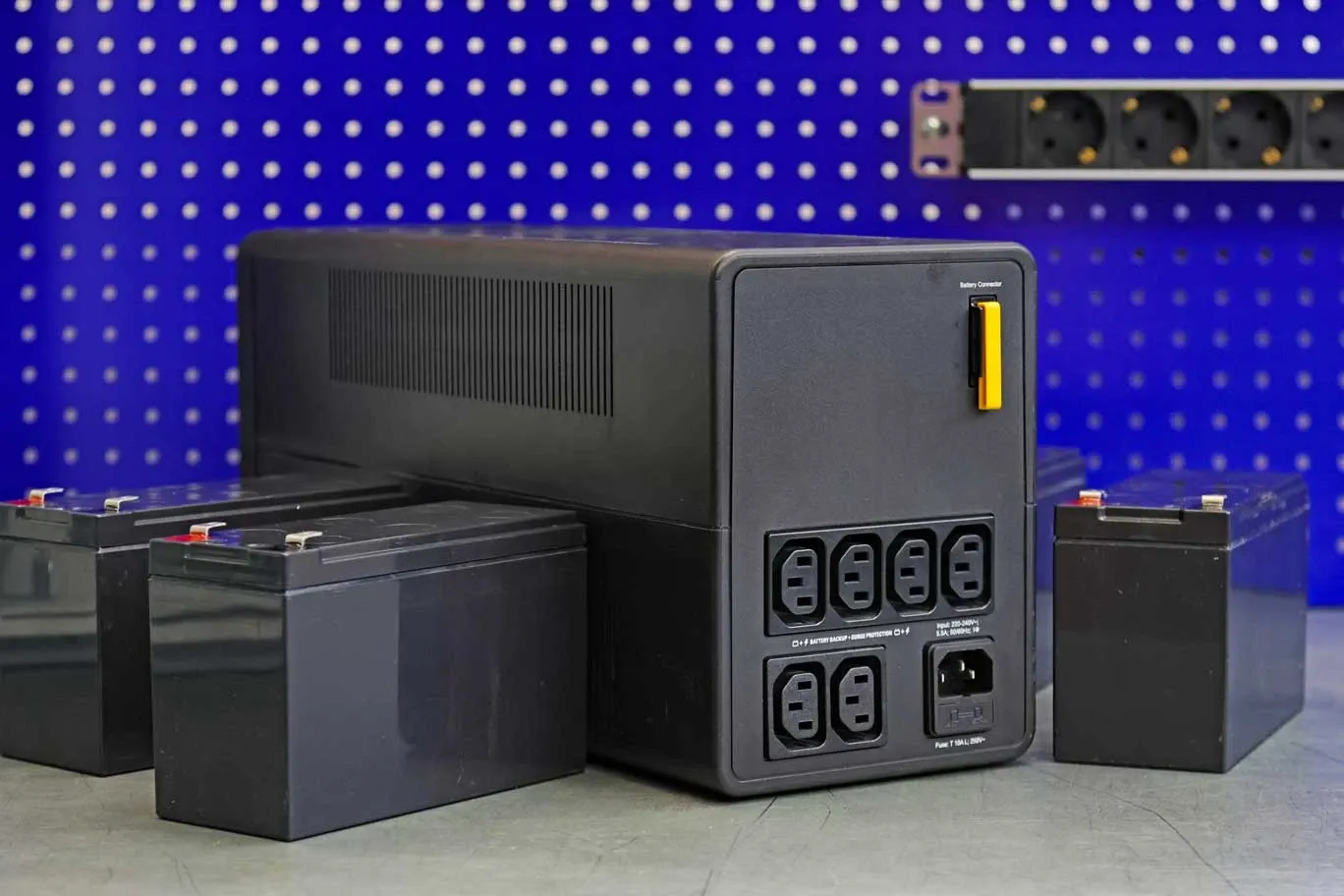
What is a UPS, and do I need one?
A UPS is a box of batteries that sits between the wall socket and your kit. When the power drops, it keeps your shared storage running long enough to shut down safely. Here’s what it does, which type to choose and how big it needs to be.
- What it is
- An uninterruptible power supply: a battery unit that powers your kit the moment the mains fails.
- What it’s for
- A clean, automatic shutdown of your storage, not hours of extra editing time.
- Who needs one
- Anyone with a NAS or shared storage in the studio. Sudden power loss is one of the riskiest things that can happen to it.
- Don’t forget
- Connect it to your NAS so it shuts down by itself, and replace the batteries before they wear out.
SC.01 What a UPS does
Power that doesn’t blink
Mains power isn’t perfectly steady. A UPS sits between the socket and your equipment, and steps in when the supply drops out or misbehaves. It protects against three things.
Power cuts
When the mains fails, the UPS switches to its batteries straight away, so your kit keeps running instead of dropping dead mid-task.
Brownouts and sags
Sometimes the voltage dips without cutting out altogether. Computers and storage can crash or restart on a dip you’d barely notice in the lights. A UPS smooths these out.
Surges and spikes
Short bursts of high voltage, for example when power comes back after a cut, can damage power supplies. A UPS helps filter them before they reach your kit.
In England, Scotland and Wales you can call 105, free, to report a power cut or check on one in your area. Full sources are listed at the end of this page.
SC.02 Why storage is different
Losing power is hard on a NAS
If a workstation loses power, you lose what you hadn’t saved. If your shared storage loses power, everyone’s work can be at risk, because the storage is always in the middle of doing something.
Writes in progress
A busy NAS is writing renders, cache files and project saves for several people at once. Cut the power and those files can be left half-written.
Data still in cache
Storage often holds recent changes in memory and writes them to the drives a moment later. Anything still in memory when the power goes is lost.
File system damage
The file system keeps track of where everything lives. An unclean shutdown can leave it inconsistent, which can mean a long check on restart, missing files or, at worst, a volume that won’t mount.
Interrupted rebuilds
If a drive has failed and the array is rebuilding onto a new one, the array is at its most fragile. Losing power part-way through can make a bad day much worse.
Stress on the drives
Repeated hard power losses, and the surge when power returns, add wear to drives and power supplies. Older drives sometimes fail to spin back up.
Everyone stops
Even when nothing is damaged, a NAS that went down hard may need checks before it’s safe to use, and the whole team waits while that happens.
KEY The real job
A studio UPS usually isn’t there to keep you editing through a long power cut. Its job is to give your storage a few minutes to finish what it’s writing and shut down cleanly, by itself, even if nobody is in the building.
SC.03 The safe shutdown
Your NAS and UPS talk to each other
A UPS on its own only buys time. Connect it to your NAS, and the NAS knows when the power has gone and shuts itself down while there’s still battery to spare.
- 1
Connect them
Most UPSs connect to a NAS with a USB cable, or over the network if the UPS has a network card. The NAS then reads the UPS’s status.
- 2
Set the trigger
In your NAS settings, choose when to shut down: after a set number of minutes on battery, or when the battery falls to a set level. Short blips won’t trigger it.
- 3
Tell the others
Many NAS systems can pass the warning on over the network, so other servers and workstations on the same UPS can shut down too.
Then test it. Pull the UPS’s plug from the wall at a quiet time and check the NAS shuts down on its own, and starts back up cleanly afterwards. It’s far better to find a loose cable or wrong setting on a Tuesday afternoon than during a real cut.
SC.04 The three types
Standby, line-interactive or online
UPSs come in three main designs. They all keep the power on in a cut. The difference is how well they deal with dirty power, and what they cost to buy and run.
| Power problem | Standby (offline) | Line-interactive | Online (double-conversion) |
|---|---|---|---|
| Power cut | Protects | Protects | Protects |
| No gap at switchover | No | Partly | Protects |
| Brownouts and sags | Partly | Protects | Protects |
| Surges and spikes | Partly | Partly | Protects |
| Electrical noise | No | Partly | Protects |
This is a general guide; individual models vary, so check the specification. Partly means some protection: a standby unit handles a sag by switching to battery, which drains it, and a line-interactive unit switches over in a few milliseconds, which most modern power supplies ride through.
Standby
The simplest and cheapest. Power passes straight through until the mains fails, then the UPS switches to battery. Fine for a single desktop or a router, but usually not the first choice for shared storage.
Line-interactive
Corrects small voltage dips and rises without touching the battery, and switches over quickly in a cut. The usual choice for a studio NAS, switch and router: good protection at a sensible price.
Online double-conversion
Rebuilds clean power all the time, so there’s no switchover at all. The best protection, but it costs more, runs warmer and can be noisier. Worth it for larger storage or where the local supply is poor.
SC.05 Sizing
How big a UPS do you need?
Sizing a UPS means two things: enough power for everything plugged into it, and enough battery to see it through a safe shutdown.
- 1
Add up the load
List everything that will go on the UPS and add up its power draw in watts. Use the real figure under load where you can find it, not the rating printed on the power supply, which is usually much higher than everyday use.
- 2
Check watts, not just VA
UPSs are rated in VA (volt-amperes) and in watts. The watt rating is the one that matters for your load, and it’s typically lower: often around 60% to 90% of the VA figure. That ratio is the power factor.
- 3
Leave headroom
Aim to use no more than about 70% to 80% of the UPS’s watt rating. That leaves room for a busy moment, a new drive or an extra switch next year.
- 4
Check the runtime
Runtime depends on the load: the lighter the load, the longer the battery lasts. Look up the maker’s runtime chart for your load, and make sure it comfortably covers your shutdown delay plus the time the NAS takes to shut down.
- NAS, 8 drives, busy
- About 150 W
- 10GbE network switch
- About 50 W
- Router and firewall
- About 25 W
- Total load
- About 225 W
- With headroom
- 225 W ÷ 0.75 = about 300 W of UPS capacity
- A sensible fit
- A line-interactive UPS rated around 1,000 VA / 600 W would run this at under half load
- Runtime needed
- Shutdown after 2 minutes on battery, about 3 minutes to shut down, plus a margin: at least 10 minutes at 225 W
These are example figures only. Real power draw depends on the model, the number of drives and how hard they’re working, so measure or check the specifications for your own kit.
SC.06 What to plug in
Protect what matters, skip what doesn’t
Every extra device on the UPS shortens the runtime. Put on it the kit your storage depends on, and keep power-hungry extras off.
Yes: your NAS
The main reason the UPS is there. If your storage has two power supplies, ideally connect both.
Yes: the network switch
Workstations need the switch to reach the storage and save their work, and the NAS may need it to warn other devices to shut down.
Yes: router and firewall
Keeps your internet connection and any remote alerts working, so you hear about the power cut even if you’re not there.
Maybe: workstations
Edit machines draw a lot of power. Usually they’re better on their own smaller UPS, or saved and closed by hand, than sharing the storage’s battery.
No: laser printers
They draw large bursts of power when they warm up, which can overload a UPS. Plug them straight into the wall.
No: heaters and kettles
Anything that heats things up draws far more than a UPS is built for. Keep them, and anything similar, well away from it.
SC.07 Looking after it
Batteries wear out
A UPS with a tired battery looks fine until the day it’s needed. A little upkeep makes sure it does its job when the power goes.
Plan to replace them
UPS batteries typically last around 3 to 5 years, and less in a warm room. Note the fitting date on the unit and budget for replacements.
Use the self-test
Most UPSs can run a regular self-test and will warn you when the battery needs replacing. Make sure those warnings reach someone.
Keep it cool
Heat is the biggest enemy of batteries. A UPS in a hot comms cupboard will need new batteries sooner than one in a cool, ventilated space.
Recheck the runtime
As batteries age and you add kit, runtime falls. Check the estimated runtime now and then, and adjust your shutdown settings if you need to.
Test the shutdown
A yearly test, unplugging the UPS at a quiet time, proves the whole chain still works: battery, cable, settings and the NAS itself.
Replace safely
Many UPSs have batteries you can swap without switching off the kit it powers. Follow the maker’s instructions, and recycle old batteries properly.
SC.08 Rack or tower
Choose the shape that fits
If your storage and switch live in a rack, a rack-mount UPS fits alongside them. It’s heavy, so it usually goes at the bottom of the rack, which keeps the rack stable and the cabling tidy.
If your NAS sits on a desk or a shelf, a tower UPS stands beside it or on the floor nearby. Either way, give it space to breathe, and keep it somewhere it won’t be kicked, unplugged or used as a footrest.
SC.09 How we help
Take power worries out of the studio
Whether your storage lives in your studio or in our own UK-based data centre, we can look after it for you. Keeping it in the data centre takes power cuts at the studio out of the picture.
Storage in your studio
Fast shared storage for editing on site. We can specify and fit a UPS with your storage, and set it up to shut your NAS down safely in a power cut. Local storage
Storage in our data centre
Keep live projects in our own UK-based data centre, backed by UPS and generator power, with multiple air-conditioning systems for redundancy. A power cut at the studio doesn’t touch your storage. Cloud storage
Your own kit, our power
Move your own servers and storage out of the comms cupboard into our data centre, with power, cooling and connectivity included. Colocation
Our UPS, generator and cooling redundancy are measures to protect the facility, not a guarantee of continuous power or availability. See our terms for details.
SC.10 Checklist
A UPS set up properly, step by step
Use this to check your own setup. If you can’t tick every line, we’re happy to take a look.
Your storage is on a UPS
The NAS, the network switch and the router or firewall, and nothing power-hungry besides.
It’s the right type
Line-interactive or online for shared storage, rather than the most basic standby unit.
It’s big enough
The load is no more than about 70% to 80% of the UPS’s watt rating, not just its VA rating.
The runtime covers a shutdown
Enough battery for your shutdown delay, the shutdown itself and a margin.
The NAS is connected to it
By USB or over the network, with a shutdown trigger set in the NAS.
Other devices get the warning
Servers and workstations sharing the UPS shut down too.
You’ve tested it
Unplugged at a quiet time, the NAS shut down by itself and came back up cleanly.
Someone hears the alerts
Power cut, self-test and battery warnings go to a person who acts on them.
The battery date is on the unit
So you know when it’s due for replacement, typically every 3 to 5 years.
REF Sources & further reading
- New national phone line launched for power cuts, SSE, September 2016. 105 is a free number for reporting or getting information about power cuts in England, Scotland and Wales, which connects you to your local electricity network operator.
- Good backup practice: the 3-2-1 rule explained. A UPS protects your storage from power problems, but it isn’t a backup.
- Colocation and our terms, for the power and cooling in our own UK-based data centre.
END Next step
Is your storage ready for a power cut?
Tell us about your setup and we’ll show you where the gaps are, with no obligation. We manage the storage, so you can focus on what you do best.